How to Prevent Production Accidents in AWS, GCP & Azure Cloud Consoles
March 11, 2026
Every DevOps engineer has experienced that moment of dread: “Wait — was that production?” Cloud console mistakes in production environments cost teams hours of downtime, data loss, and post-mortem stress. The good news is that most of these accidents are entirely preventable with the right combination of safeguards.
The Real Cost of “Wrong Environment” Mistakes
Operating in the wrong cloud environment is one of the most common causes of production incidents. Here are some real-world scenarios that keep SREs up at night:
- Terraform destroy on production — An engineer runs
terraform destroythinking they’re targeting a dev workspace. The production database and all associated services are deleted. Recovery takes days. - Wrong AWS account deployment — A CI/CD pipeline deploys an untested build to the production account because an environment variable pointed to the wrong account ID.
- GCP project confusion — A developer modifies IAM permissions on what they believe is a staging project, accidentally locking out production service accounts.
- Azure resource deletion — An operator deletes a resource group in the Azure Portal, not realizing they had the production subscription selected.
These incidents share a common root cause: the cloud console doesn’t make it obvious which environment you’re in. AWS, GCP, and Azure consoles all look virtually identical whether you’re in production or development.
Why Cloud Consoles Are Designed to Confuse You
Cloud providers optimize their consoles for feature access, not environment awareness. Consider what you see when switching between accounts:
- AWS — The account ID is hidden behind a dropdown in the top-right corner. You need to click to see which account you’re in.
- GCP — The project name appears in a small selector at the top, but it’s easy to miss when you’re focused on the service you’re configuring.
- Azure — The subscription name is often buried in resource details, not prominently displayed on every page.
The result: you rely on memory and context switching to track which environment is active. Under pressure or during incident response, this cognitive overhead leads to mistakes.
5 Defense Layers Against Production Accidents
No single safeguard is enough. Effective production safety requires multiple defense layers, each catching mistakes that slip through the previous one.
1. IAM Policies and Permission Guardrails
The first line of defense is preventing destructive actions at the permission level:
- Use separate IAM roles for production and non-production environments
- Require MFA for production account access
- Apply Service Control Policies (AWS) or Organization Policies (GCP) to restrict dangerous operations
- Use Azure Resource Locks to prevent accidental deletion of critical resources
Limitation: IAM policies prevent unauthorized actions but don’t prevent authorized engineers from making mistakes in the environment they have access to.
2. CI/CD Pipeline Gates
Automate environment-specific checks in your deployment pipeline:
- Require manual approval steps for production deployments
- Validate the target environment matches the branch or tag being deployed
- Add
terraform planreview steps before anyapply - Use separate pipeline configurations for each environment
Limitation: Pipelines protect deployments but don’t help when engineers operate directly in the cloud console — which happens frequently during debugging and incident response.
3. Terminal and CLI Context Indicators
Make your terminal show which environment is active:
- Configure your shell prompt to display the current AWS profile, GCP project, or Azure subscription
- Use
kubectxandkubensto track Kubernetes context - Set up
direnvto automatically switch environment variables per directory - Color-code terminal backgrounds per environment (e.g., red terminal for production SSH sessions)
Limitation: Terminal indicators only help with CLI operations. They don’t apply when you’re working in the browser-based cloud console.
4. Visual Environment Indicators in Cloud Consoles
This is the gap that most teams overlook. You’ve secured your pipelines, locked down IAM, and customized your terminal — but the cloud console itself still looks identical across environments.
Visual color-coding solves this by adding an unmistakable signal that requires zero cognitive effort to interpret:
- Red header = production (stop and think)
- Amber header = staging (proceed with caution)
- Green header = development (safe to experiment)
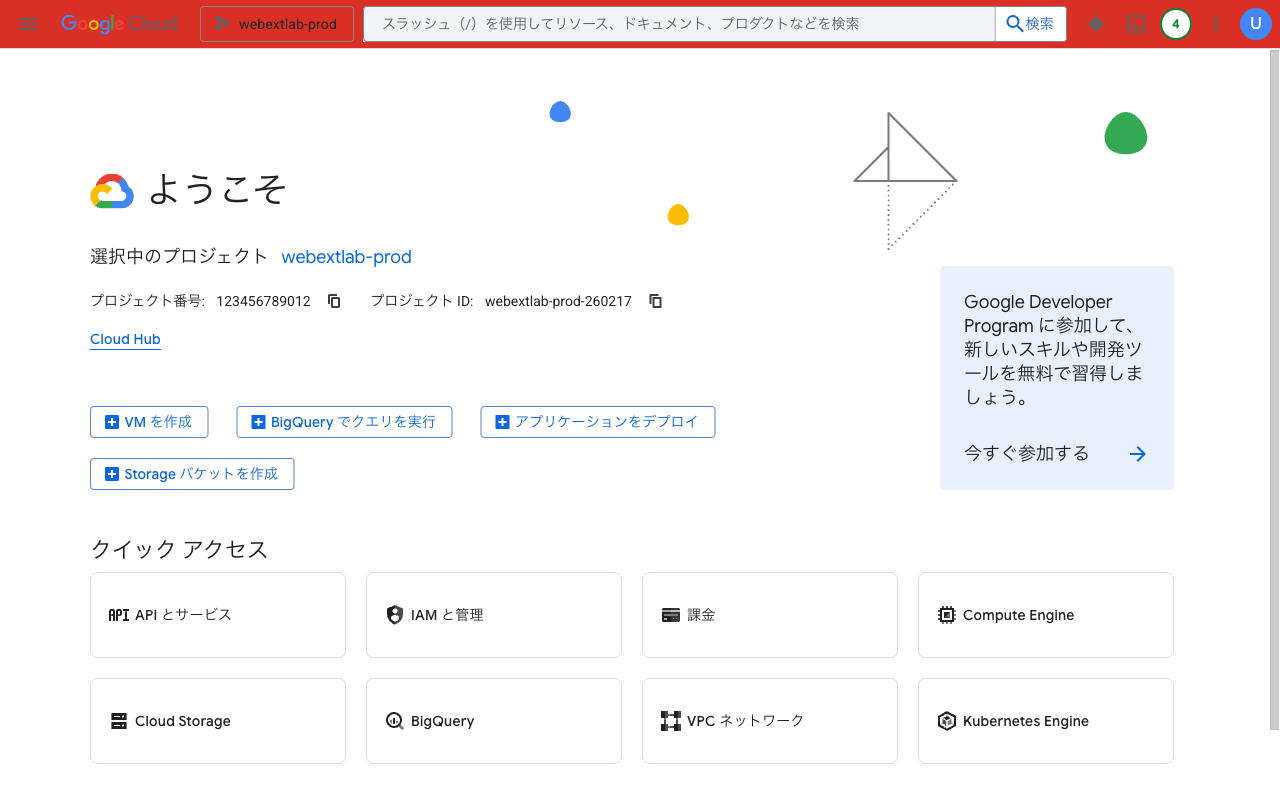
A red header bar on GCP Console immediately signals “this is production”
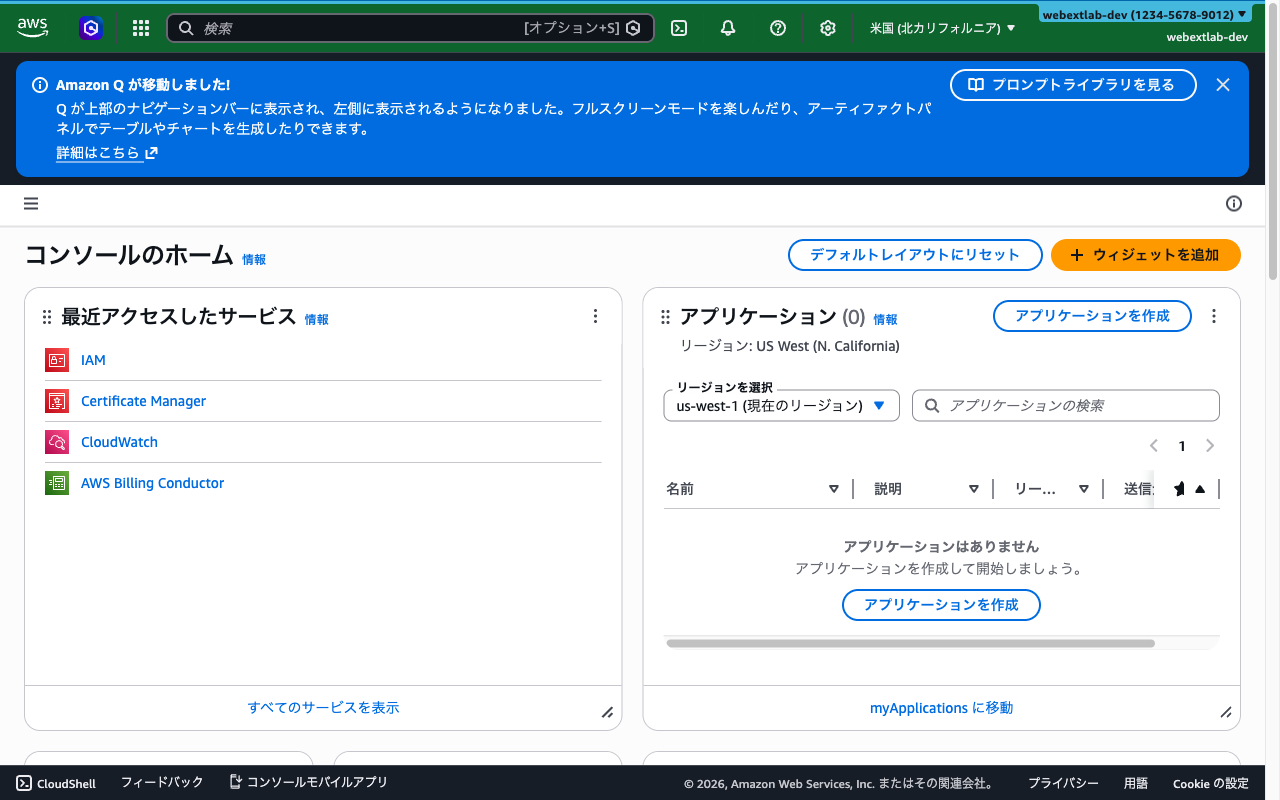
A green header bar on AWS Console signals a safe development environment
AWS introduced a native account color feature in August 2025, but it only works within AWS and applies a subtle tint to the header — easy to miss. For multi-cloud teams working across AWS, GCP, and Azure, a browser extension like Cloud Env Marker provides consistent, high-visibility color-coding across all three providers in a single tool.
5. Confirmation Dialogs and Runbooks
The final safety net before a destructive action executes:
- Enable deletion protection on critical resources (RDS, DynamoDB, GCS buckets)
- Write runbooks that include an “environment verification” step before any manual operation
- Use
--dry-runflags when available (e.g.,kubectl delete --dry-run=client) - Require typing the resource name to confirm deletion (AWS already does this for some services)
Putting It All Together
The most effective teams use all five layers together. Here’s a practical checklist:
Production Safety Checklist
- Separate IAM roles/accounts per environment with MFA on production
- CI/CD pipelines with manual approval gates for production
- Shell prompt showing current cloud account/project/subscription
- Visual color-coding on cloud consoles (red = production)
- Deletion protection enabled on all critical resources
- Runbooks with explicit environment verification steps
Layers 1, 2, and 5 are likely already part of your workflow. Layer 3 is a quick terminal configuration. Layer 4 — visual console indicators — is the easiest to add and often the most impactful, because it works at the moment of decision, before you click anything.
Add Layer 4 in 30 seconds: Cloud Env Marker color-codes your AWS, GCP & Azure console headers by environment. Install it, hit Quick Presets, and your production console turns red immediately.
Questions or feedback? Reach out at [email protected].