4 Ways to Track Your Subscriptions: Apps, Spreadsheets, Extensions & Bank Tools Compared
April 24, 2026
The average person has 12 active subscriptions. Some have over 20. Each one renews on a different date, charges a different amount, and uses a different billing cycle. The question is not whether you should track them — it is how. The method you choose determines how much effort you spend maintaining it, how accurate it stays, and how much personal data you share. Here are four approaches, each with fundamentally different trade-offs.
Why the Tracking Method Matters More Than the Tool
Most “best subscription tracker” articles compare 10 apps side by side. But the more important decision is the category of tracking method, because each category comes with a fixed set of trade-offs around privacy, automation, and maintenance effort.
A bank-linked tool will always have access to your transaction history. A spreadsheet will always require manual updates. Choosing the right method first narrows the field to tools that actually fit your priorities.
1. Spreadsheets (Google Sheets or Excel)
The simplest approach: create a spreadsheet with columns for subscription name, monthly cost, billing cycle, renewal date, and category. Add formulas to calculate your monthly and yearly totals.
Pros:
- Completely free and fully customizable
- You control the data — nothing is shared with any third party
- Works on any device with a browser
- Easy to share with a partner or family for household budgeting
- Templates are widely available (Google Sheets, Smartsheet, Tiller)
Cons:
- Every change requires a manual update — price increases, cancellations, new subscriptions
- No renewal reminders unless you set up separate calendar events
- Easy to forget to update, leading to stale data over time
- Editing on mobile is functional but not comfortable
Best for: Privacy-conscious users who have fewer than 10 subscriptions and are disciplined about updates.
2. Manual-Entry Mobile Apps
Dedicated subscription trackers like Bobby, Subby, and ReSubs let you add subscriptions manually through a polished interface with icons, categories, and renewal tracking.
Pros:
- Clean, purpose-built UI — faster to use than a spreadsheet
- Built-in renewal reminders and push notifications
- Category breakdowns and spending visualizations
- Some apps work entirely offline with local storage (Bobby, Subby)
- No bank connection needed — you control what data is entered
Cons:
- Another app to install and maintain
- Many require a subscription fee themselves (the irony is not lost)
- Data is siloed in the app — exporting can be limited
- Syncing across devices sometimes requires an account
Best for: Mobile-first users who want a better experience than spreadsheets without sharing financial data.
3. Browser Extensions
Browser-based subscription trackers run where you spend most of your time — your browser. You add subscriptions through the extension popup and see your dashboard without opening a separate app.
SubWatch takes this approach. Click the toolbar icon, add a subscription with its cost, billing cycle, category, and renewal date, and your dashboard updates instantly. A pie chart breaks down spending by category, and the upcoming renewals list shows what is due next.
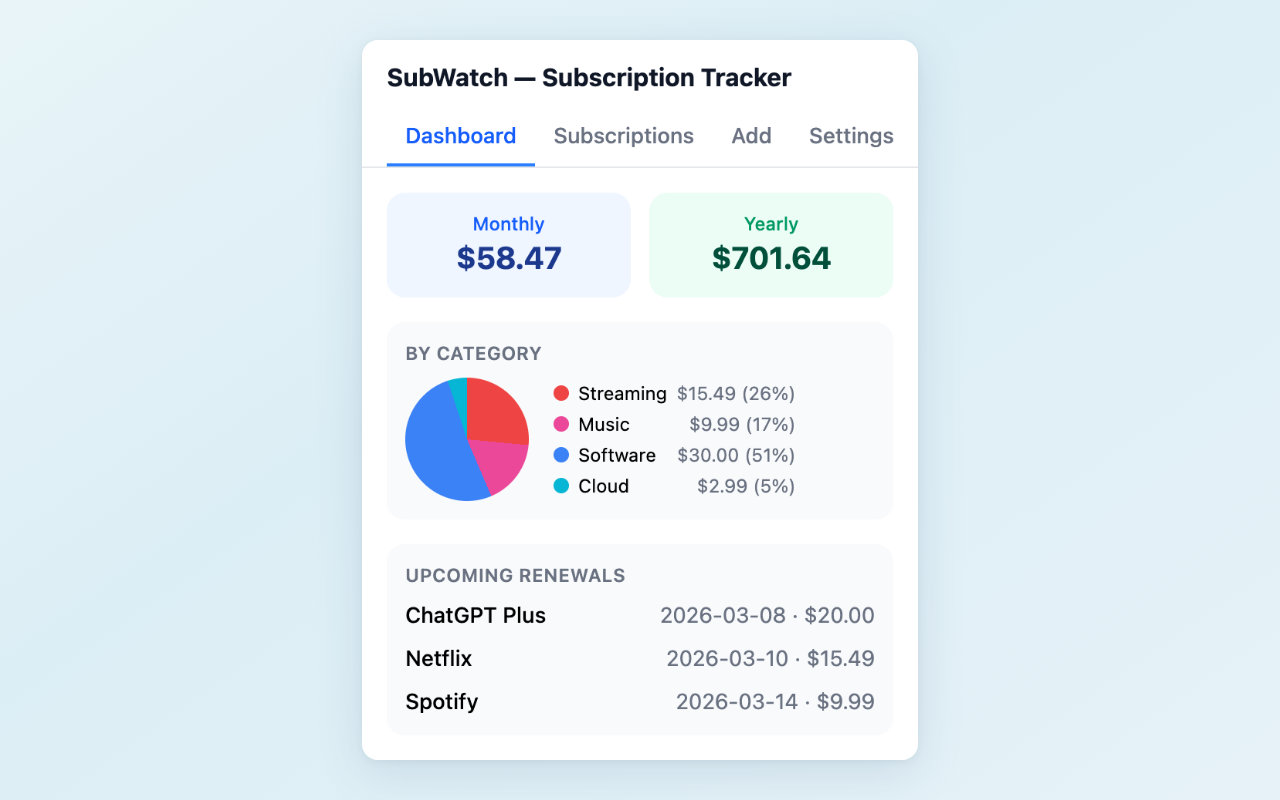
Dashboard with monthly total, category breakdown, and upcoming renewals at a glance
Pros:
- Always accessible from the browser toolbar — no app to open or bookmark to find
- All data stored locally in the browser — nothing sent to external servers
- Renewal reminders via Chrome notifications (Pro)
- Supports multiple currencies with locale-aware formatting
- No account creation required
Cons:
- Only available when using the browser (not on mobile unless using a mobile browser with extension support)
- Manual entry like mobile apps — no automatic detection
- Data lives in browser storage — clearing browser data could remove it
Best for: Desktop-first users who want quick access to their subscription overview without leaving the browser, with privacy as a priority.
4. Bank-Linked Tools (Rocket Money, Trim, etc.)
Bank-linked services connect to your financial accounts via Plaid or similar aggregators and automatically detect recurring charges across all your cards and accounts.
Pros:
- Automatic detection — finds subscriptions you forgot about
- Catches price increases and new charges without manual entry
- Some services negotiate bills or cancel subscriptions on your behalf
- The most comprehensive view of all recurring spending
Cons:
- Requires sharing your bank login credentials with a third party
- Read-only access, but the service sees your full transaction history — health apps, dating services, financial tools, entertainment preferences
- Most charge a monthly fee ($4–$12/month) or take a commission on savings
- Dependent on the aggregator maintaining connections to your banks
- Data is stored on the service’s servers, not locally
Best for: Users who prioritize automation over privacy and want a fully hands-off experience.
Comparison at a Glance
| Method | Setup Effort | Maintenance | Reminders | Privacy | Cost |
|---|---|---|---|---|---|
| Spreadsheet | Medium | High (manual) | No (add separately) | Full control | Free |
| Mobile App | Low | Medium (manual) | Yes (push) | Good (local apps) | Free–$3/yr |
| Browser Extension | Low | Medium (manual) | Yes (Chrome) | Full control (local) | Free–$3 |
| Bank-Linked Tool | Low | None (auto) | Yes | Low (shares data) | $4–$12/mo |
Which Method Should You Choose?
The right choice depends on two questions: How much do you value automation? and How much data are you willing to share?
- You have 5–10 subscriptions and want zero data sharing? A spreadsheet gives you complete control at zero cost. Set calendar reminders for renewals manually.
- You want a better UI than spreadsheets but still manual? A mobile app like Bobby or Subby adds structure and reminders without bank connections.
- You live in your browser and want it always accessible? A browser extension like SubWatch keeps your dashboard one click away, with local storage and no account needed.
- You have 20+ subscriptions across multiple cards and want everything automatic? A bank-linked tool like Rocket Money catches what you miss, at the cost of sharing your financial data.
There is no single best method. The privacy-automation spectrum is a genuine trade-off — more automation means more data shared. Pick the point on that spectrum that matches your comfort level, and the specific tool becomes a secondary decision.
Try the browser extension approach: SubWatch tracks your subscriptions with a dashboard, category breakdown, and renewal reminders — all stored locally in your browser. Free for up to 5 subscriptions, $2.99 one-time for Pro.
Found this comparison helpful? Leave a review on the Chrome Web Store — it helps others find the tool.
Questions or feedback? Reach out at [email protected].