5 Copy-and-Paste Techniques to Double Your Productivity
March 22, 2026
Copy and paste is one of the most frequently used computer operations, yet most people use it in the most basic way possible: copy one thing, paste it, repeat. A few simple techniques can eliminate the frustration of lost clipboard content and save significant time every day.
1. Keep a Clipboard History
The biggest limitation of the default clipboard is that it only holds one item. Copy something new, and the previous content is gone. This leads to constant back-and-forth switching between windows to re-copy text.
The fix: Use a clipboard manager that saves everything you copy. Instead of holding one item, your clipboard becomes a searchable history of every piece of text you have copied.
Built-in options:
- Windows: Press Win+V to access clipboard history (enable it in Settings → System → Clipboard)
- Mac: No built-in clipboard history beyond the single-item clipboard
For browser-based workflows, ClipStash keeps your clipboard history in Chrome’s Side Panel. Every copy is saved automatically, and you can search and re-copy any past item with one click — all stored locally with no cloud sync.
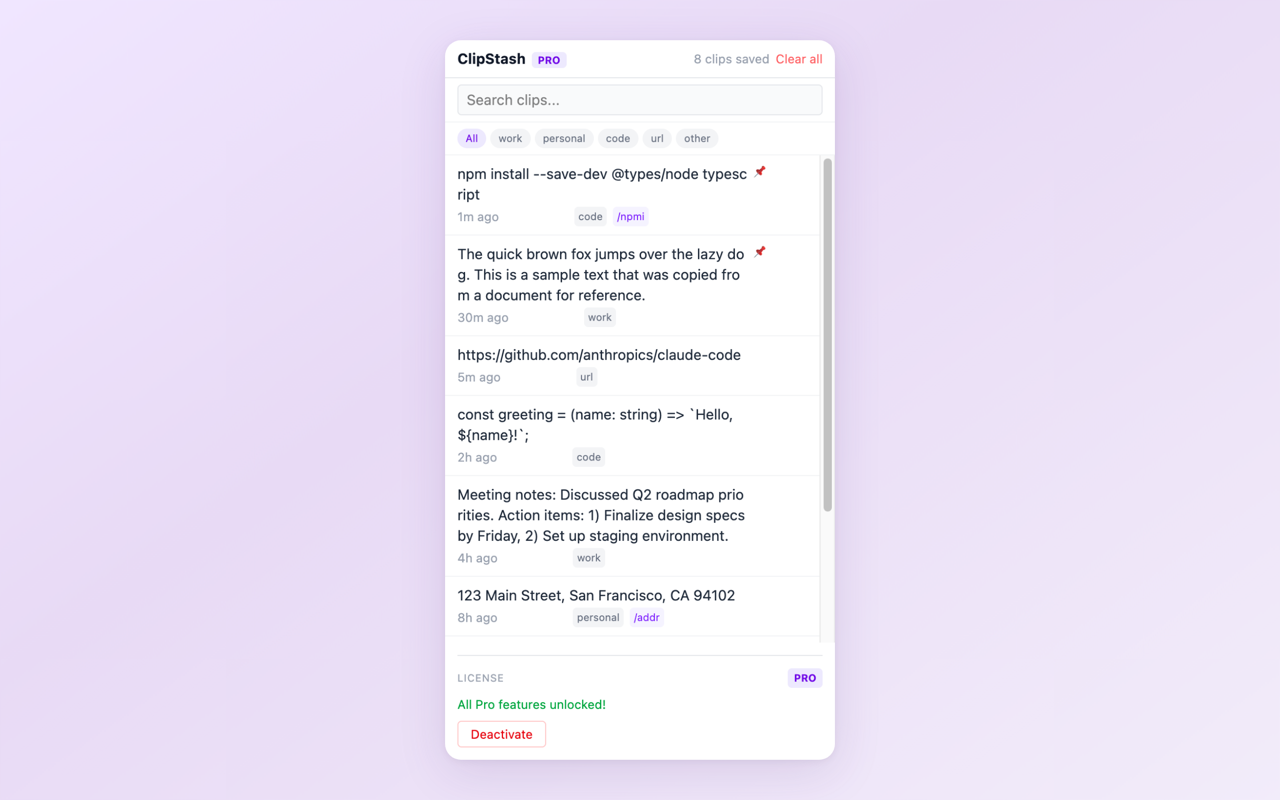
Clipboard history — every copy is automatically saved and searchable
2. Search Instead of Scrolling
When your clipboard history grows, scrolling through it to find a specific item becomes slow. A search function changes this completely.
Instead of thinking “when did I copy that?” you simply type a few characters of the text you remember. The matching clip appears instantly.
This is especially useful for:
- URLs you copied earlier in the day
- Code snippets from a tutorial
- Addresses or phone numbers
- Email templates you have used before
3. Organize Clips with Categories
Not all copied text is equal. Work-related content, personal information, code snippets, and URLs serve different purposes. Categorizing clips helps you find them faster and keeps your history organized.
Useful categories:
- Work — meeting notes, project links, client information
- Code — snippets, terminal commands, API keys
- URL — links you reference frequently
- Personal — addresses, account numbers, personal notes
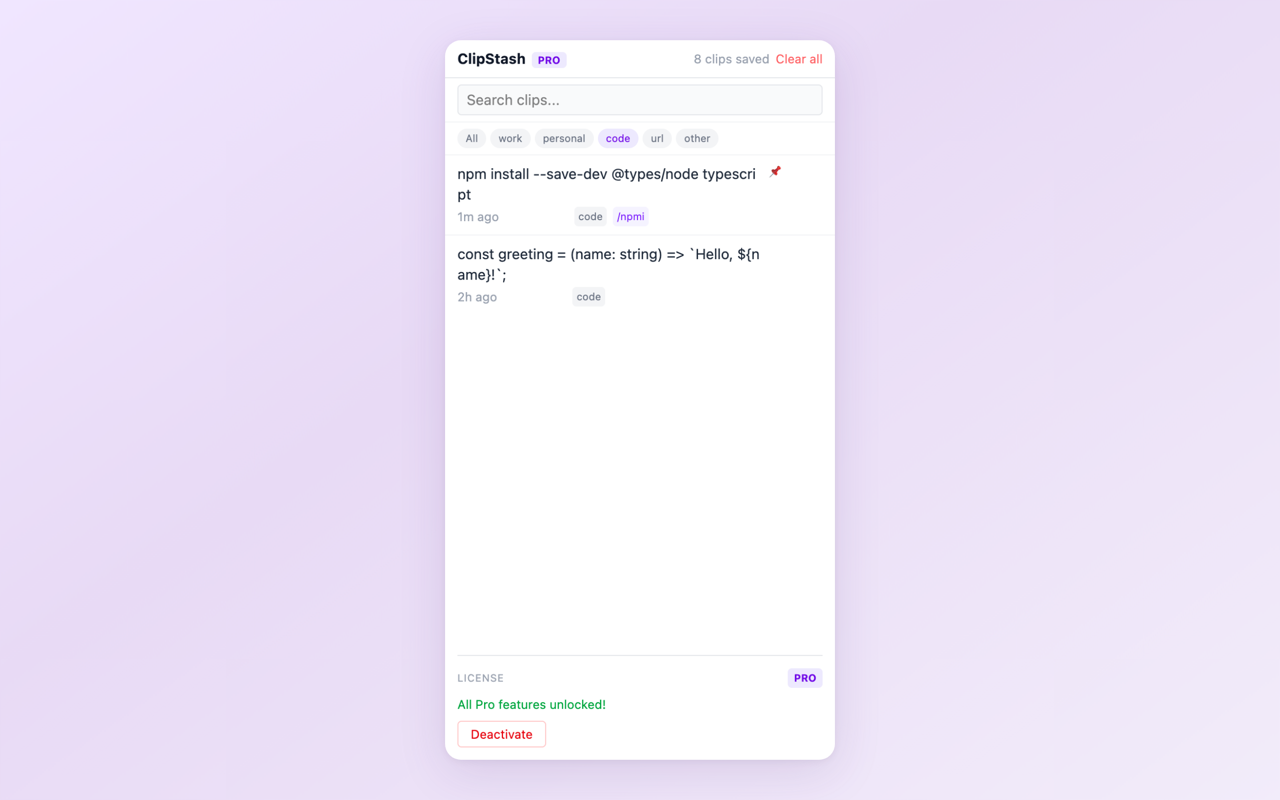
Categories — organize clips by type for faster retrieval
4. Pin Frequently Used Text
Some text you paste repeatedly: your email address, a standard reply, a meeting link, a code boilerplate. Instead of copying these from their source every time, pin them in your clipboard manager for instant access.
Pinned items stay at the top of your clipboard regardless of what else you copy, acting as a lightweight collection of text shortcuts.
5. Use Text Expansion for Repetitive Typing
Text expansion takes pinned clips one step further. Instead of opening a clipboard manager, you type a short abbreviation and it automatically expands into the full text.
Examples:
- Type
;;email→ expands to[email protected] - Type
;;addr→ expands to your full mailing address - Type
;;meeting→ expands to your standard meeting invitation text
This eliminates the copy-paste step entirely for text you use frequently.
Privacy Matters
Clipboard managers handle sensitive data — passwords, API keys, personal information. Before using one, check:
- Where is data stored? Local-only storage is safer than cloud-synced
- What permissions does it need? Clipboard access should be the minimum
- Can you clear history? You should be able to delete sensitive clips
Want a privacy-first clipboard manager that stays in your browser? ClipStash saves your clipboard history locally, with search, categories, and text expansion — all from Chrome's Side Panel.
Feedback is welcome — leave a review on the Chrome Web Store page or reach out at [email protected].