Clipboard Managers Compared: Built-In Tools vs Desktop Apps vs Browser Extensions
April 27, 2026
You copy text, switch tabs, copy something else, and the first item is gone. Every clipboard manager solves this by keeping a history of everything you copy. But clipboard managers come in three fundamentally different forms — built-in OS tools, desktop applications, and browser extensions — and each type has a different scope of access, privacy profile, and feature set. The type you choose matters more than the specific tool.
Why the Category Matters More Than the Tool
A desktop clipboard app runs at the system level. It sees everything you copy across every application — your password manager, your banking app, your terminal, your browser. A browser extension, by contrast, only sees what happens inside the browser. These are not just feature differences; they are privacy boundaries.
Before comparing individual tools, understanding what each category can and cannot access helps you make a decision that matches your actual workflow and comfort level.
1. Built-In Clipboard History (Windows and macOS)
Both major operating systems now include basic clipboard management:
- Windows: Press
Win + Vto open clipboard history. It stores text, images, and HTML from any application. Cloud sync across devices is available through your Microsoft account. - macOS: Universal Clipboard syncs the most recent copy between Apple devices via iCloud, but it keeps only one item at a time. macOS has no built-in multi-item history.
Pros:
- Already installed — nothing to add
- Works across all applications
- Windows clipboard history stores multiple items with pinning
- No third-party code running on your system
Cons:
- Windows history is basic — no search, no categories, limited formatting
- macOS only syncs the latest item, with no history
- Windows cloud sync sends clipboard data through Microsoft servers
- No browser-specific features like URL detection or tab context
- Clearing history requires manual action
Best for: Users who need basic clipboard history across all apps and want zero setup.
2. Desktop Clipboard Apps (Ditto, Maccy, CopyQ, PasteBar)
Third-party desktop apps install at the OS level and intercept every copy event system-wide. They offer powerful features built on top of full system access.
Pros:
- System-wide access — captures clipboard from every application
- Advanced search, filtering, and organization (tabs, tags, folders)
- Scripting and automation support (CopyQ)
- Many are open-source and free (Ditto, Maccy, CopyQ)
- Some store data entirely locally with no cloud (Maccy, PasteBar, Ditto by default)
Cons:
- Sees everything you copy — passwords, API keys, personal messages, financial data from every app
- Requires installation with system-level permissions
- Some tools sync via cloud by default, sending clipboard contents to external servers
- Runs as a background process consuming system resources
- Platform-specific — Maccy is Mac only, Ditto is Windows only
Best for: Power users who need clipboard management across all applications and are comfortable with system-level access.
3. Browser Extension Clipboard Managers
Browser-based clipboard managers operate within the browser sandbox. They capture and organize text you copy while browsing, but cannot see clipboard activity from other applications.
ClipStash is a browser extension clipboard manager that stores your clipboard history in a side panel. Search, categorize, and pin frequently used clips — all within the browser.
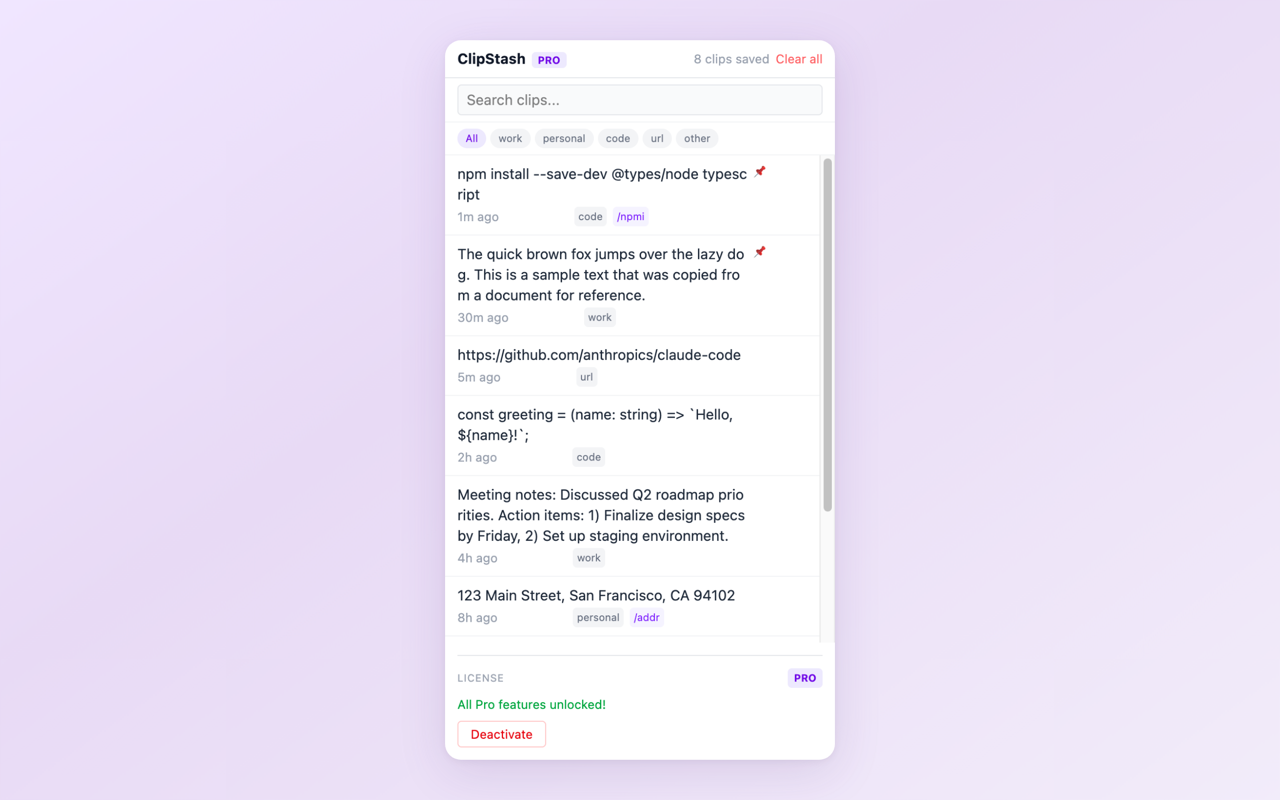
Clipboard history in ClipStash — searchable, categorized, and always accessible in the side panel
Pros:
- Limited scope by design — only sees clipboard activity within the browser, not system-wide
- Zero network access — data stays entirely in local browser storage
- No system-level permissions required — runs inside Chrome’s extension sandbox
- Side panel stays open while you browse, like a clipboard notebook
- No background process outside the browser
Cons:
- Cannot capture clipboard from desktop apps (terminal, code editors, native email)
- Data lives in browser storage — clearing browser data can remove history
- Only available in Chromium browsers (Chrome, Edge, Brave, etc.)
- No system-wide keyboard shortcut integration
Best for: Users who do most of their copy-paste work in the browser and want clipboard history without granting system-level access.
Comparison at a Glance
| Feature | Built-In (Win/Mac) | Desktop App | Browser Extension |
|---|---|---|---|
| System-wide access | Yes | Yes | No (browser only) |
| Clipboard history | Win: Yes / Mac: No | Yes (advanced) | Yes |
| Search & filter | No | Yes | Yes |
| Privacy scope | OS-level | OS-level (sees all) | Browser-only |
| Network access | Win sync: optional | Varies by tool | None (local only) |
| Install effort | None | App install | Extension install |
| Cost | Free | Mostly free | Free / low-cost Pro |
Which Type Fits Your Workflow?
The choice comes down to where you copy things and how much access you are comfortable granting:
- You copy across many apps (terminal, code editor, browser, design tools)? A desktop app like Ditto or CopyQ gives you full coverage. Accept that it sees everything.
- You mostly copy within the browser (research, writing, web apps)? A browser extension keeps your history accessible without system-level permissions. If your work happens in Chrome, this covers 90% of your needs.
- You just need occasional clipboard history with zero setup? Windows
Win + Vhandles the basics. On macOS, you will need a third-party tool for multi-item history.
The privacy difference is the deciding factor for many users. Desktop apps that run at the system level can see passwords you copy from your password manager, tokens from your terminal, and messages from any app. Browser extensions cannot. If most of your clipboard work happens in the browser, a browser extension gives you the functionality you need with a smaller trust surface.
Try the browser-first approach: ClipStash keeps your clipboard history in a side panel with search, categories, and pinned clips — all stored locally with zero network access. Free to use.
Found this comparison helpful? Leave a review on the Chrome Web Store — it helps others find the tool.
Questions or feedback? Reach out at [email protected].