5 Ways to Extract Data from a Webpage Without Writing Code
April 28, 2026
You see a table of product prices, a directory of businesses, or a list of job postings on a webpage — and you need that data in a spreadsheet. The traditional answer is web scraping with Python, but that assumes you can write code. For everyone else, there are five practical approaches that require zero programming, each with different trade-offs around effort, accuracy, and scale.
1. Copy-Paste into a Spreadsheet
The simplest method: select the data on the page, copy it, and paste it into Google Sheets or Excel. Modern spreadsheets are surprisingly good at preserving table structure when you paste HTML content.
When it works well:
- Small, one-time extractions (under 50 rows)
- Data is displayed in a clean HTML table
- You need the data right now with zero setup
When it breaks down:
- Data spans multiple pages (pagination)
- The page uses dynamic loading (content appears as you scroll)
- The table structure does not survive the paste (merged cells, nested elements)
- You need to repeat the extraction regularly
Effort: None. Scale: Very low. Accuracy: Depends on the page structure.
2. Google Sheets IMPORTHTML and IMPORTXML
Google Sheets has built-in functions that pull data directly from web pages:
=IMPORTHTML("url", "table", 1)— Imports the first HTML table from a page=IMPORTXML("url", "//xpath")— Imports data matching an XPath expression
When it works well:
- The data is in a standard HTML
<table>element - You want the spreadsheet to refresh automatically
- You need data from a single page with a stable URL
When it breaks down:
- The page requires login or JavaScript rendering
- Data is not in a
<table>tag (div-based layouts, card grids) - Google’s rate limits block frequent refreshes
- You need data from many pages at once
Effort: Low (one formula). Scale: Low to medium. Accuracy: High for proper HTML tables.
3. Point-and-Click Browser Extensions
Extensions like Web Scraper and Data Miner let you visually select elements on a page and define extraction patterns by clicking. You create a “sitemap” or “recipe” that tells the extension which elements to capture, then run it.
When it works well:
- You need to extract the same type of data from many similar pages
- The page has a consistent, predictable HTML structure
- You are comfortable learning a visual selector interface
When it breaks down:
- You do not know CSS selectors or how HTML is structured
- The website changes its layout frequently (selectors break)
- Pages use complex dynamic loading or shadow DOM
Effort: Medium (learning the selector interface). Scale: Medium. Accuracy: High when selectors are correct, fragile when pages change.
4. AI-Powered Browser Extensions
Instead of manually defining CSS selectors, AI-powered extensions analyze the page structure automatically and identify the data fields for you. You describe what you want in natural language or let the AI detect the structure.
AI Data Extractor takes this approach. Click the extension, and it automatically detects tables, lists, and structured content on the page. Review the detected fields, adjust if needed, and export to CSV or JSON with one click.
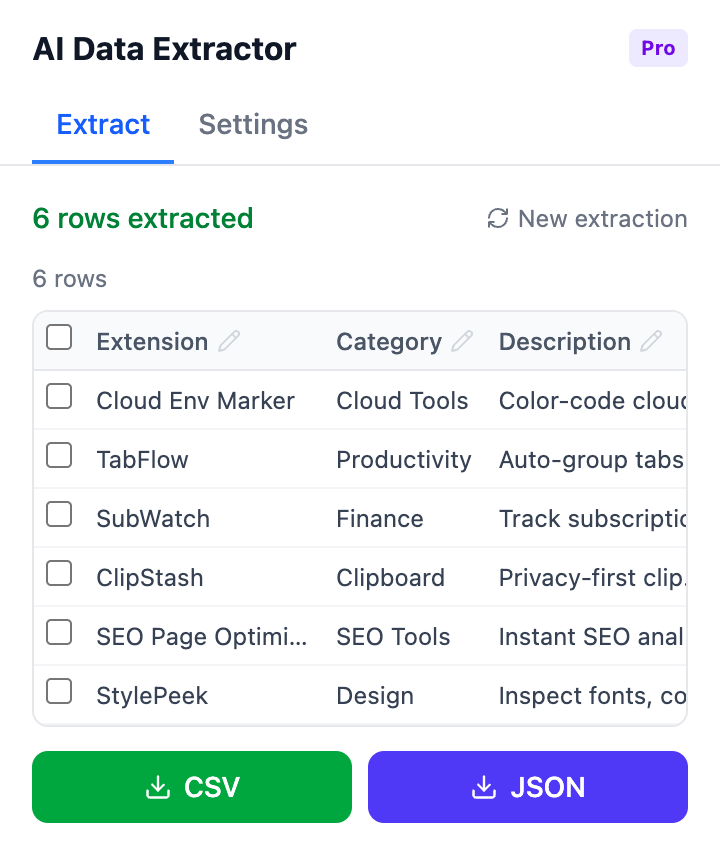
AI-detected data fields ready for export — no selector configuration needed
When it works well:
- You want structured data without learning selectors
- The page layout is complex or inconsistent
- You need a quick extraction from an unfamiliar page
- One-time or occasional extractions
When it breaks down:
- You need to scrape thousands of pages automatically on a schedule
- The page has very unusual or deeply nested HTML
- You need extraction logic that runs without human review
Effort: Very low (click and export). Scale: Low to medium (per-page). Accuracy: High for well-structured pages, with human review available.
5. No-Code Cloud Platforms (Octoparse, Browse AI, ParseHub)
Cloud-based platforms provide visual builders for creating scraping workflows that run on their servers. You define the extraction once, and the platform runs it on a schedule, handles pagination, and exports results automatically.
When it works well:
- You need data from the same source regularly (daily, weekly)
- The extraction spans many pages with pagination
- You want the data delivered to a spreadsheet or database automatically
- You do not want to manage infrastructure
When it breaks down:
- Free tiers have strict page limits (often 100–1,000 pages/month)
- Anti-bot protections block cloud-based scrapers
- Complex sites with CAPTCHAs or login walls require premium features
- Monthly costs ($30–$100+) add up for ongoing projects
Effort: Medium (visual workflow builder). Scale: High. Accuracy: High with proper configuration.
Comparison at a Glance
| Method | Setup Time | Skill Needed | Scale | Recurring? | Cost |
|---|---|---|---|---|---|
| Copy-paste | None | None | Very low | Manual | Free |
| Google Sheets functions | 2 min | Basic formulas | Low–Medium | Auto-refresh | Free |
| Point-and-click extensions | 15–30 min | CSS selector basics | Medium | Semi-auto | Free |
| AI browser extensions | 1 min | None | Low–Medium | Manual | Free / Pro |
| Cloud platforms | 30–60 min | Visual builder | High | Automated | $0–$100+/mo |
Which Method Should You Try First?
Start with the simplest approach that matches your situation:
- Need 10 rows from one page right now? Copy-paste. Done.
- Need a table that updates itself? Try
IMPORTHTMLin Google Sheets first. - Need data from many similar pages with a consistent layout? A point-and-click extension saves time over manual work.
- Unfamiliar page, no idea how it is structured? An AI extension detects the structure for you without selector setup.
- Need the same data pulled weekly from a changing source? A cloud platform automates the entire workflow.
Most people start with copy-paste, hit a wall when they need more than one page, and then jump straight to complex tools. The methods in between — spreadsheet functions, browser extensions, and AI-powered detection — handle the middle ground where most real needs actually fall.
Try AI-powered extraction: AI Data Extractor automatically detects tables and structured data on any webpage. Export to CSV or JSON with one click — no selectors, no code.
Found this comparison helpful? Leave a review on the Chrome Web Store — it helps others find the tool.
Questions or feedback? Reach out at [email protected].