How to Keep Your Clipboard Data Safe: A Practical Guide
March 27, 2026
Every time you copy a password, an API key, a credit card number, or a private message, that data sits on your clipboard — accessible to any app, extension, or website that knows how to read it. Most people never think about clipboard security, but the clipboard is one of the most exposed surfaces on your device. Here is how to protect it.
What’s Actually on Your Clipboard
Think about what you copied in the last hour. It might include:
- Passwords from a password manager or email
- API keys or tokens from a developer console
- Personal information — addresses, phone numbers, ID numbers
- Financial data — account numbers, transaction references
- Private messages — text from chats, emails, or documents
Each of these items was, at some point, sitting in your clipboard as plain text — readable by any process with clipboard access. Unlike files on disk, clipboard contents have no permissions, no encryption, and no access log.
4 Ways Your Clipboard Data Gets Exposed
1. Cloud Sync
Some clipboard managers sync your history across devices through cloud servers. This means every password, API key, and private message you copy gets uploaded to a remote server. Even with encryption, this introduces risks:
- Server breaches can expose your entire clipboard history
- The sync provider can potentially access your data
- Data may persist on servers even after you delete it locally
Windows Clipboard History with sync enabled, for example, sends your clipboard contents to Microsoft servers. Third-party clipboard managers with cloud sync do the same through their own infrastructure.
2. Clipboard Hijacking
Malicious websites or extensions can silently read or replace your clipboard contents. A common attack replaces cryptocurrency wallet addresses — you copy a legitimate address, but malware swaps it with the attacker’s address before you paste.
Fake CAPTCHA scams have also emerged where users are tricked into pasting malicious commands into their terminal or address bar.
3. Unauthorized App Access
Apps and browser extensions with broad permissions can read your clipboard in the background. In 2020, researchers discovered that dozens of popular iOS apps — including news readers and games — were silently reading clipboard contents on every launch, without any user-facing reason to do so.
In browsers, any extension with the clipboardRead permission can access your clipboard. The key question is: what does that extension do with the data?
4. Shared and Public Devices
On a shared computer, anything you copy remains in the clipboard after you walk away. The next user — or any background process — can paste and read whatever you left there. This is an overlooked risk in offices, libraries, and shared family devices.
5 Steps to Protect Your Clipboard Data
1. Audit What Gets Copied
Before improving your clipboard security, understand what is at risk. For one day, pay attention to what you copy and paste. You will likely find that sensitive data passes through your clipboard more often than you expected.
Quick audit checklist:
- Do you copy passwords instead of using autofill?
- Do you copy API keys or tokens from dashboards?
- Do you copy personal information (addresses, phone numbers) into forms?
- Do you copy text from private messages or documents?
2. Choose a Local-Only Clipboard Manager
If you use a clipboard manager, the most important decision is where your data is stored. A local-only clipboard manager keeps all data on your device — nothing is uploaded, synced, or transmitted.
Questions to ask about any clipboard manager:
| Question | Safe answer |
|---|---|
| Where is data stored? | Locally on device only |
| Does it sync across devices? | No (or opt-in with encryption) |
| What network requests does it make? | None related to clipboard content |
| Can you delete all data instantly? | Yes |
The distinction matters because your clipboard history is essentially a log of everything you have ever copied — a far more sensitive dataset than most people realize.
3. Clear Sensitive Data After Use
Get into the habit of clearing your clipboard after copying sensitive information:
- On Mac: Copy any non-sensitive text to overwrite the clipboard
- On Windows: Press
Win + Vto open clipboard history, then click “Clear all” - In a clipboard manager: Delete specific sensitive entries immediately after use
Some clipboard managers let you exclude certain types of content from being saved, which is useful for passwords and tokens.
4. Review Extension Permissions
Browser extensions that request clipboard access deserve extra scrutiny. Check what permissions an extension requires before installing:
clipboardRead— Can read what you copy. Necessary for clipboard managers, but question why other types of extensions need it<all_urls>or broad host permissions — Can access every website you visit. Combined with clipboard access, this is a significant riskstorage— Where data is stored locally. This is normal and expected- No network permissions — If a clipboard manager does not request access to external servers, your clipboard data stays on your device by design
The fewer permissions an extension requires, the smaller the attack surface.
5. Use a Password Manager for Credentials
The safest clipboard is one that never holds your passwords. Password managers with autofill bypass the clipboard entirely — your credentials go directly from the vault into the login form without ever being exposed as plain text.
If you must copy a password (some sites do not support autofill), paste it immediately and then clear your clipboard.
Choosing a Clipboard Manager with Privacy in Mind
Not all clipboard managers treat your data the same way. Here is what to look for:
Local-only storage: Your clipboard history should never leave your device unless you explicitly choose to sync it. ClipStash, for example, stores all clipboard data exclusively in your browser’s local storage — no cloud servers, no sync, no external data transmission.
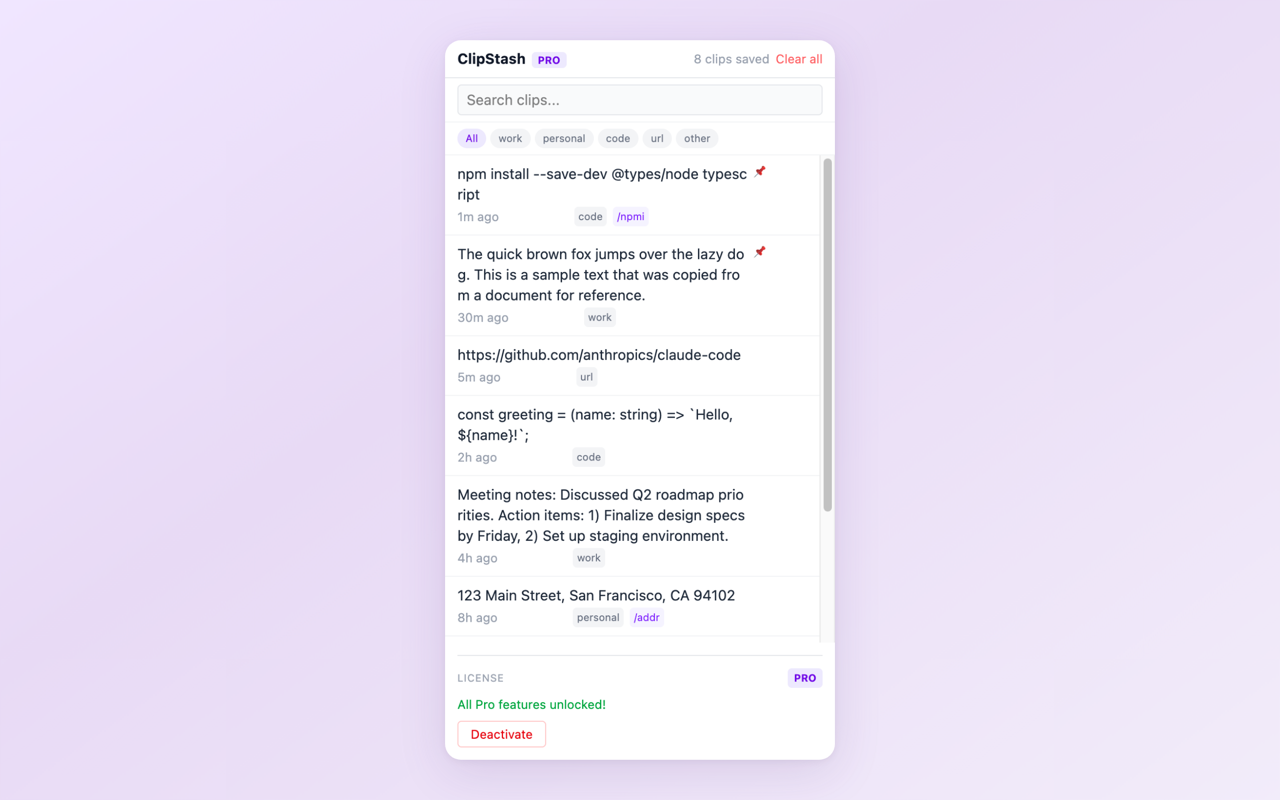
Clipboard history accessible from the browser side panel — all data stays on your device.
Minimal permissions: Compare what different clipboard managers request. An extension that only asks for clipboardRead and storage has a fundamentally smaller risk profile than one requesting access to all your tabs, browsing history, and external servers.
Transparency: Look for extensions that clearly state what data they collect (or do not collect) in their Chrome Web Store listing and privacy policy. Vague privacy statements are a warning sign.
Conclusion
Clipboard security is not about being paranoid — it is about recognizing that your clipboard regularly handles some of the most sensitive data on your device. The five steps above are practical and take minimal effort: audit what you copy, choose a local-only clipboard manager, clear sensitive data, review permissions, and use autofill for passwords.
The most impactful single change is switching to a clipboard manager that keeps data local. Everything else is secondary if your clipboard history is being synced to a cloud server you do not control.
Try a privacy-first clipboard manager
Install ClipStash — all clipboard data stays local. Zero network access, minimal permissions, complete transparency.
Found this guide helpful? Leave a review on the Chrome Web Store — it helps other privacy-conscious users discover the extension.
Questions or feedback? Reach out at [email protected]