5 Ways to Inspect Fonts, Colors, and Spacing on Any Website
April 22, 2026
You visit a beautifully designed website and want to know exactly what font that heading uses, what shade of blue the buttons are, or how much padding sits between sections. The answer is buried somewhere in the page’s CSS — but how you get to it depends on the tools you choose. Here are five approaches, each with different trade-offs for speed, depth, and ease of use.
Why Inspecting Design Styles Matters
Designers reference live websites constantly — checking competitor layouts, auditing brand consistency, or pulling values to match an existing system. Developers debug spacing mismatches and verify that implemented styles match the design spec. In both cases, the need is the same: see a page’s typography, colors, and spacing quickly and accurately.
The challenge is that most methods were built for developers, not for anyone who just needs the values. That gap has created a range of tools, from the full power of DevTools to focused extensions that show only what you need.
1. Chrome DevTools (Built-in)
Right-click any element, select Inspect, and the Elements panel opens with a full breakdown of every CSS property applied to it.
Pros:
- Already installed in every Chromium browser — nothing to add
- Shows every CSS property, inherited styles, and computed values
- Lets you edit styles live and see the result immediately
- Works with all frameworks and rendering approaches
Cons:
- The Styles panel shows dozens of properties per element, most of which you do not need for a quick design check
- Inherited rules, overridden declarations, and specificity chains create visual noise
- Box model values require clicking to the Computed tab
- No one-click copy for individual values like hex colors or font names
- Navigating between elements closes and reopens the panel context
Best for: Developers who need full CSS debugging, not just design values.
2. WhatFont + ColorZilla (Specialized Tools)
The classic approach: install one extension for fonts and another for colors.
WhatFont identifies typefaces on hover — showing the font family, size, weight, and line height in a small tooltip. ColorZilla provides an eyedropper that samples any pixel on the page and copies the color as hex, RGB, or HSL.
Pros:
- WhatFont is the most popular font identifier with millions of users
- ColorZilla’s eyedropper is precise and supports multiple color formats
- Both are lightweight and free
Cons:
- Two separate extensions for two separate tasks — no unified view
- Neither shows spacing (margin and padding)
- No export capability — you copy values one at a time
- Switching between the two tools interrupts your flow
Best for: Occasional checks where you only need one property at a time.
3. CSS Peeper (Design-Focused Overlay)
CSS Peeper was built explicitly as a DevTools alternative for designers. Click the extension icon, hover over any element, and a clean overlay shows typography, colors, and spacing in a card-style popup.
Pros:
- Designer-friendly interface — no code noise
- Shows fonts, colors, and basic spacing in one overlay
- Extracts the full color palette and image assets from the page
- Over 500,000 users — well-maintained and widely trusted
Cons:
- The overlay appears on top of the page, which can obscure the element you are inspecting
- Hovering to a new element closes the previous overlay
- No persistent panel — you lose context when you click away
- Limited export options in the free tier
Best for: Designers who want quick visual checks without DevTools.
4. Hoverify (Multi-Tool Suite)
Hoverify bundles multiple inspection tools into a single extension: CSS inspector, color picker, font detector, screenshot capture, and asset downloader.
Pros:
- All-in-one suite reduces extension clutter
- Includes a built-in screenshot tool and accessibility checker
- Hover-based inspection is fast for scanning many elements
Cons:
- Larger extension with more features than you may need
- Paid tool — the free tier has limitations
- The broad scope means each individual tool may be less polished than a dedicated alternative
- Injects UI elements into the page, which can interfere with layouts
Best for: Users who want a single extension covering inspection, screenshots, and accessibility.
5. StylePeek (Persistent Side Panel)
StylePeek takes a different approach: it opens a browser side panel that stays visible while you browse. Click any element and see its typography, colors, and spacing — all in one persistent view that does not overlay the page.
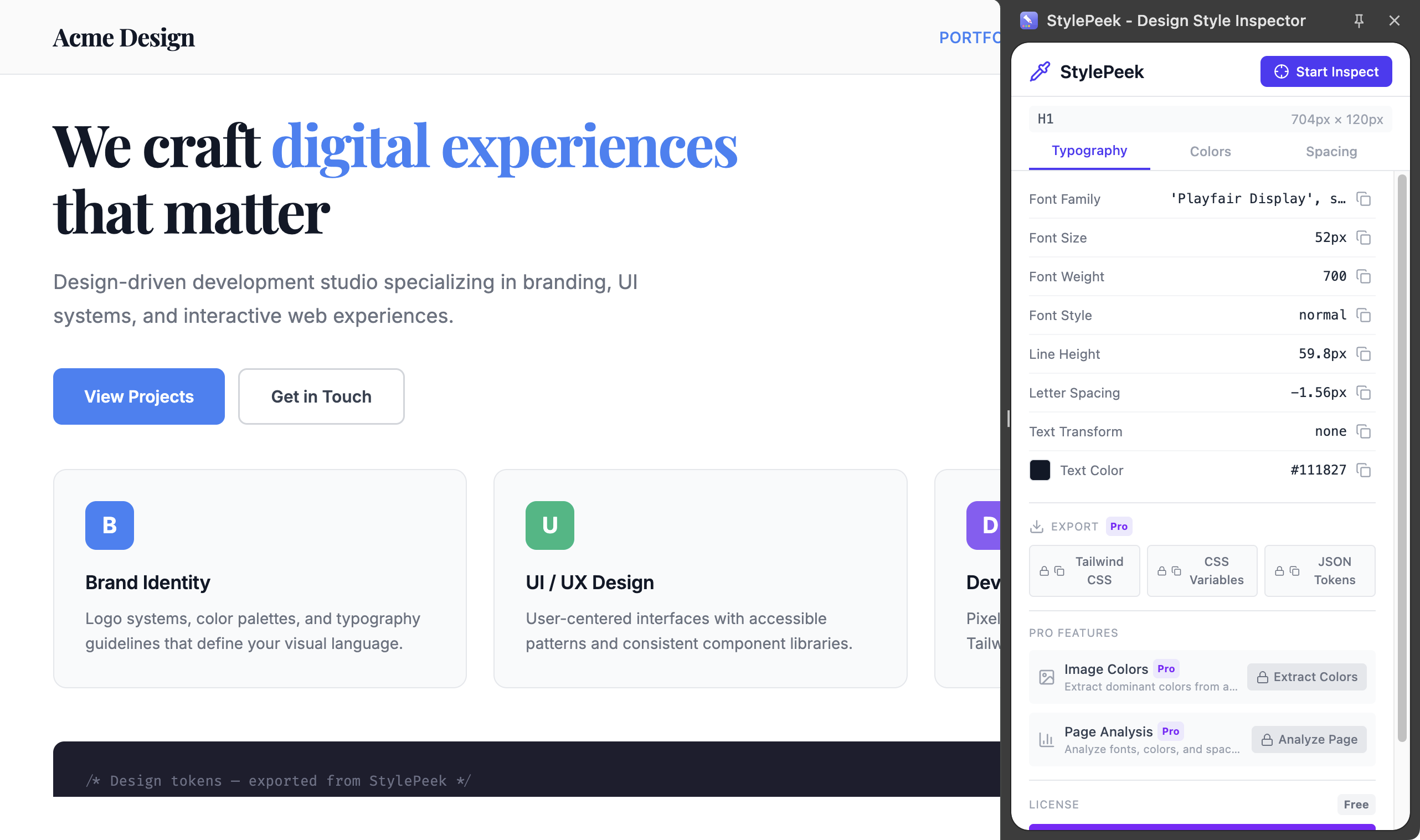
Typography details in the side panel — font family, size, weight, and line height at a glance
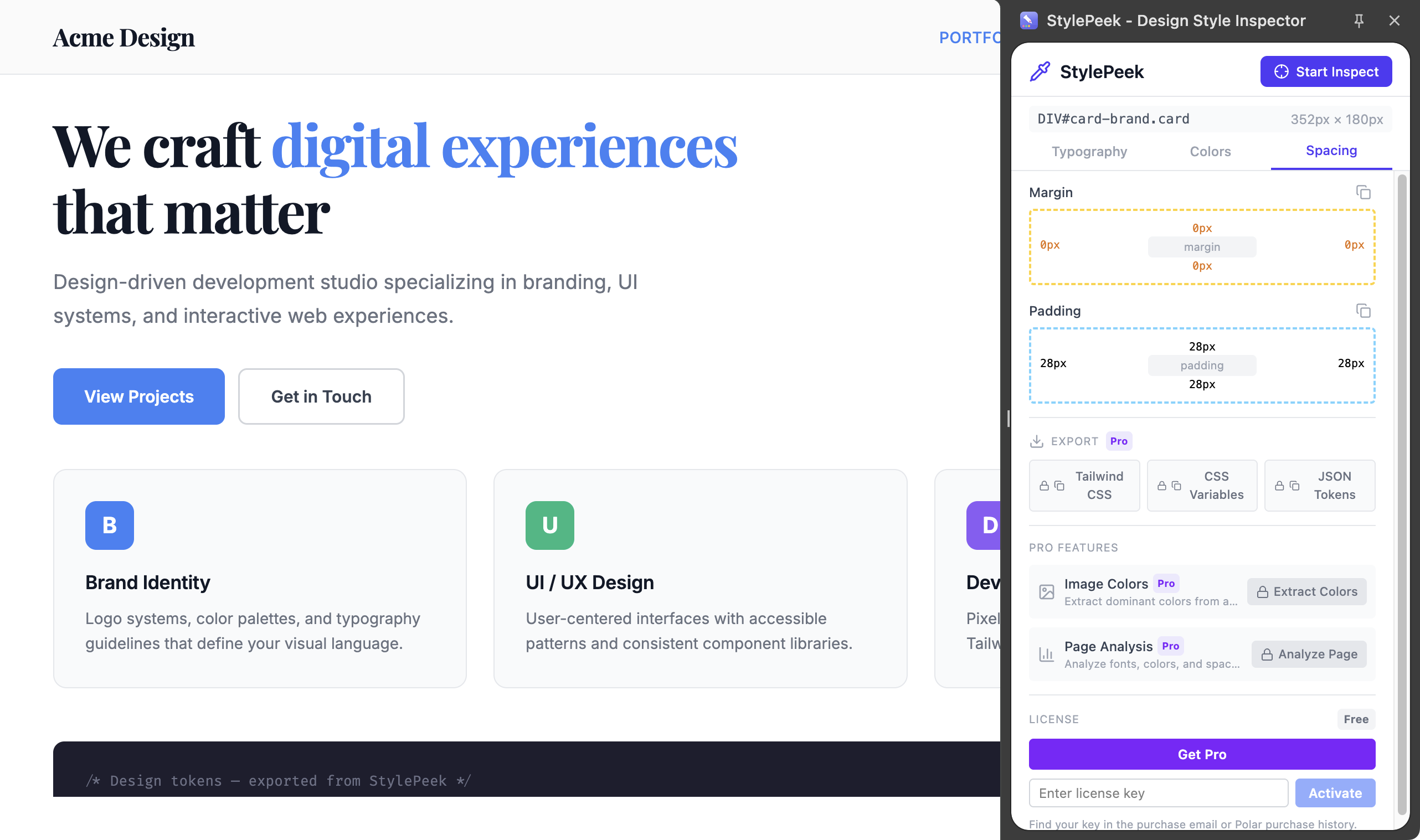
Visual box model showing margin and padding values
Pros:
- Side panel stays open across tabs and page navigations — no reopening
- Zero DOM injection — the inspected page stays completely clean
- One-click copy for any value (font name, hex color, spacing)
- Pro tier exports styles as Tailwind CSS classes, CSS custom properties, or JSON design tokens
- All processing runs locally — no data sent to any server
Cons:
- Browser extension required (Chrome, Edge, and other Chromium browsers)
- Pro features (Tailwind export, design token export, image color extraction) require a license
Best for: Designers and developers who inspect multiple elements across pages and want a persistent, non-intrusive panel.
Comparison at a Glance
| Tool | Fonts | Colors | Spacing | Persistent View | One-Click Copy | Export |
|---|---|---|---|---|---|---|
| Chrome DevTools | Yes | Yes | Yes (Computed tab) | Yes | No | No |
| WhatFont + ColorZilla | Yes | Yes | No | No | Partial | No |
| CSS Peeper | Yes | Yes | Basic | No (overlay) | Yes | Limited |
| Hoverify | Yes | Yes | Yes | No (overlay) | Yes | Limited |
| StylePeek | Yes | Yes | Yes (box model) | Yes (side panel) | Yes | Tailwind / CSS / JSON |
Which Tool Should You Choose?
The right choice depends on how often you inspect and what you do with the values:
- Occasional font or color check? WhatFont or ColorZilla handles it in seconds.
- Quick design reference without DevTools? CSS Peeper gives you a clean overview.
- Need screenshots and accessibility checks too? Hoverify bundles everything.
- Inspecting many elements across multiple pages? A persistent side panel like StylePeek avoids the constant open-close-reopen cycle.
- Full CSS debugging? DevTools remains the most powerful option for developers.
No single tool is best for everyone. The key is matching the tool to the task — and knowing you do not need to open DevTools every time you want to check a font size.
Try the side panel approach: StylePeek inspects fonts, colors, and spacing in a persistent side panel — no overlays, no DOM injection. Free to use, with Tailwind and design token export in Pro.
Found this comparison helpful? Leave a review on the Chrome Web Store — it helps other designers find the tool.
Questions or feedback? Reach out at [email protected].