Too Many Chrome Tabs? 5 Strategies to Organize Your Browser
March 24, 2026
Most people have 20 to 40 tabs open at any given time. Some have far more. The result is a cramped tab bar where you can barely read page titles, slower browser performance, and the constant anxiety of losing a tab you need. Here are five strategies that actually help — from quick built-in features to automation tools.
1. Use Chrome Tab Groups
Chrome’s built-in Tab Groups let you organize tabs into named, color-coded clusters. Right-click any tab and select “Add tab to new group” to get started.
Best practices:
- Name groups by project or outcome (“Q2 Planning”) rather than by app (“Google Docs”)
- Pick consistent colors — for example, red for urgent, blue for reference, green for personal
- Collapse groups you are not actively using to free up tab bar space
Tab Groups are a great first step, but they have one significant limitation: they disappear when you close Chrome or when a session crashes. There is no built-in way to save and restore a tab group layout.
2. Pin Your Core Tabs
Tabs you use every day — email, calendar, project management — should be pinned. Right-click a tab and select “Pin” to shrink it to an icon and anchor it on the far left of your tab bar.
Pinned tabs:
- Cannot be accidentally closed with Ctrl+W
- Survive browser restarts (if “Continue where you left off” is enabled)
- Take up minimal space
This works well for 3 to 5 essential tabs. Beyond that, the pinned area itself becomes crowded.
3. Close What You Do Not Need Right Now
The simplest strategy is often the hardest to follow. Many tabs stay open “just in case” but are never revisited.
A practical rule: if you have not looked at a tab in the last 2 hours, either bookmark it or close it. Chrome’s address bar search can find previously visited pages quickly, so keeping tabs “for reference” is rarely necessary.
For tabs you want to revisit later, use Chrome’s built-in “Reading List” (right-click a tab → “Add tab to reading list”) instead of keeping them open.
4. Set Up Domain-Based Auto-Grouping
Manual tab organization requires constant effort. Every new tab you open needs to be dragged into the right group. Domain-based rules automate this entirely.
The concept is simple: define rules like “all github.com tabs go into a green ‘Code’ group” or “all docs.google.com tabs go into a blue ‘Docs’ group.” When you open a matching URL, it is automatically placed in the correct group.
TabFlow is a Chrome extension that does exactly this. You define domain rules (with pattern matching for contains, starts-with, or regex), and tabs are grouped automatically as you open them. It also includes quick presets for common domains like Google Workspace, GitHub, and social media.
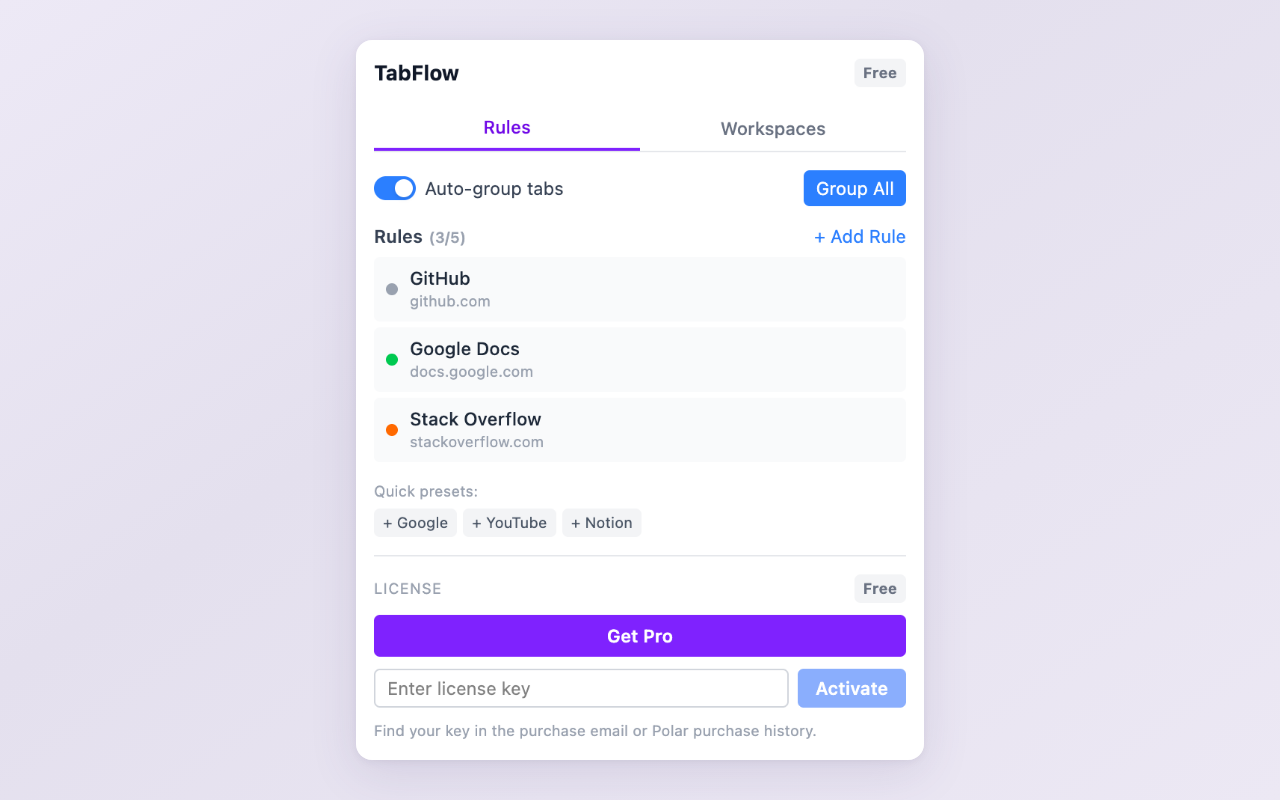
Domain rules — define patterns and tabs are grouped automatically
5. Save Your Tab Layout as a Workspace
Even with tab groups and auto-grouping, there is still the risk of losing your layout. Browser crashes, accidental window closures, or simply restarting your computer can wipe out a carefully organized set of tabs.
Workspace management solves this by letting you save your entire tab group layout — group names, colors, tab URLs, and positions — and restore it with one click.
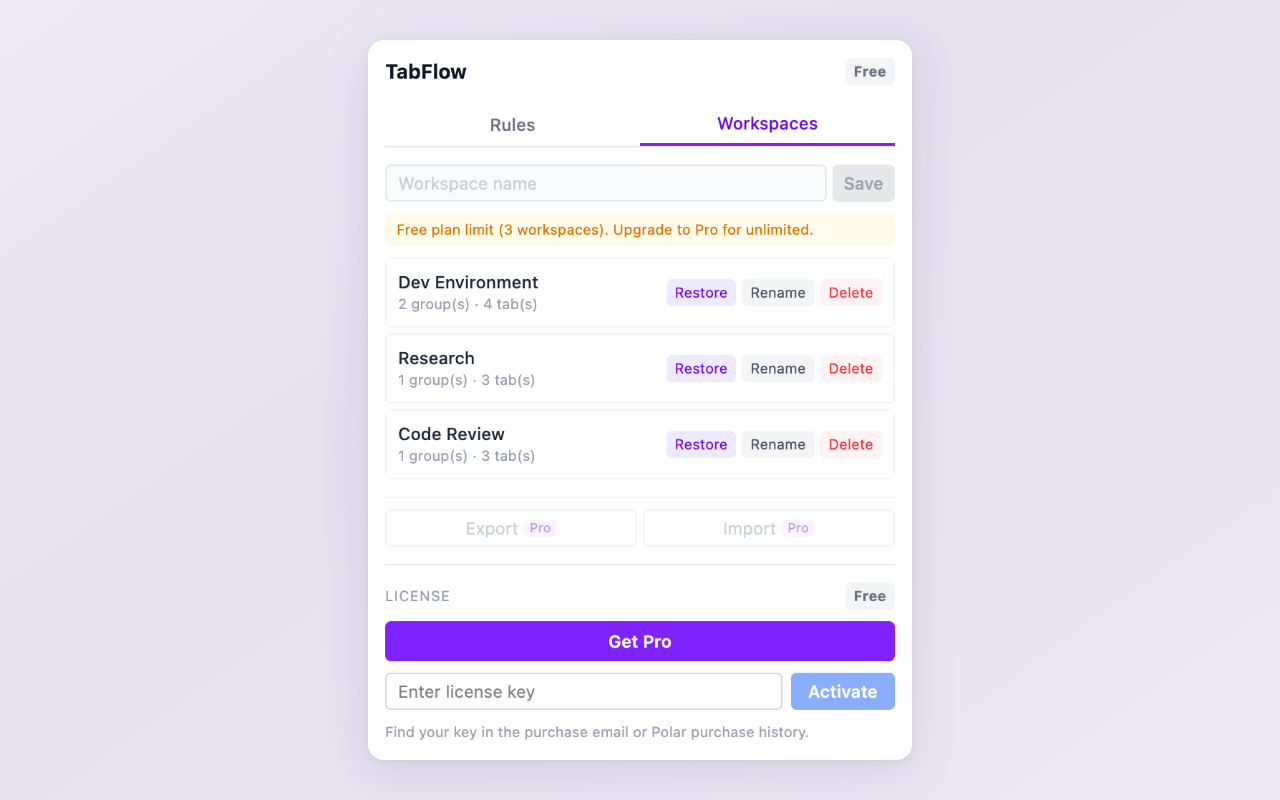
Workspaces — save your entire tab layout and restore it anytime
This is especially useful if you work on multiple projects and need to switch contexts. Save your “Frontend Dev” workspace, close those tabs, open your “Client Meeting” workspace, and switch back later without losing anything.
Which Strategy Should You Start With?
| Strategy | Effort | Best For |
|---|---|---|
| Tab Groups | Low | Anyone with 10+ tabs |
| Pinning | Low | Daily-use tabs (email, calendar) |
| Close unused tabs | Low | Reducing clutter immediately |
| Auto-grouping | Medium | Power users with 20+ tabs daily |
| Workspaces | Medium | Multi-project workflows |
Start with Tab Groups and pinning — they are built into Chrome and take seconds to set up. If you find yourself spending time manually organizing tabs every day, auto-grouping and workspaces will save you that effort.
Want to automate your tab organization? TabFlow adds domain-based auto-grouping and workspace save/restore to Chrome's native Tab Groups.
Feedback is welcome — leave a review on the Chrome Web Store page or reach out at [email protected].